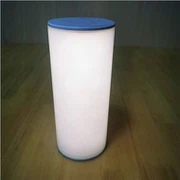
Ultra-thin Bluetooth Light Speaker Instructions
Feb 14, 2022
Ultra-thin bluetooth light speaker Instructions
1) Go to "Settings" > "Bluetooth" to turn on your phone's Bluetooth
2) After installing the APP, click the icon to enter the APP interface
3) Click the icon or swipe left and right to switch between the home page and each function interface
4) Turn on the Bluetooth light, click "Home" > "Light Control List" > "Scan" on the APP interface, check the searched Bluetooth light, and click Return to add the Bluetooth light to the light control list
5) Connect and control the bluetooth light: click the icon of the added bluetooth light to enter the connection control interface, click the icon > connect, after the connection is successful, you can control the bluetooth light through the control interface. (The specific control interface will vary according to the number of connected Bluetooth lights)
5.1) One light can control the main light on and off, and the brightness of the light can be adjusted by sliding the brightness slider. (The side light switch will be displayed if there is a side light)
5.2) The secondary light can control the switch of the main light. Slide the color temperature slider to adjust the color temperature of the light, and slide the brightness slider to adjust the brightness of the light. (The side light switch will be displayed if there is a side light)
5.3) Three-way lights and four-way lights can adjust the color and brightness of the lights and control the switch of the main light. (The side light switch will be displayed if there is a side light)
A) Adjust the brightness of the white light: Click the light bulb icon, the light will turn white, and slide the brightness slider to adjust the brightness of the white light.
B) Adjust the color and brightness of the main light: Click the color wheel icon, switch to the color wheel interface, click the color on the color wheel, and the light will change to the selected color. Slide the brightness slider to adjust the brightness of the selected color.
C) Adjust the color and brightness of the main light according to the selected picture: Click the picture button, import the photo from the mobile phone album or take a photo directly, click anywhere on the photo, the light will become the color selected on the photo, you can also click the upper right corner and so on to change the photo; slide the brightness slider to adjust the brightness of the selected color
5.4) Five street lights can adjust the color, color temperature, brightness of the lights and control the switch of the main light. (The side light switch will be displayed if there is a side light)
A) Adjust the color temperature and brightness of the main light: Click the light bulb icon, the light will turn white, slide the color temperature slider to adjust the color temperature of the light, and slide the brightness slider to adjust the brightness of the light
B) Adjust the color and brightness of the main light: Click the color wheel icon, switch to the color wheel interface, click the color on the color wheel, and the light will change to the selected color. Slide the brightness slider to adjust the brightness of the selected color
C) Adjust the color and brightness of the main light according to the selected picture: click the picture button, import the photo from the mobile phone album or take a photo directly, click anywhere on the photo, the light will become the color selected on the photo, or click the upper right corner etc. icon to change photos; slide the brightness slider to adjust the brightness of the selected color
Tips:
1> Click the name of the bluetooth light in the connection state, the corresponding light will flash, and the name of the bluetooth light can be changed
2> Click the icon etc
3> When there is a side light, the side light switch will be displayed, which can control the on and off of the side light